Showing posts with label EPM 2003. Show all posts

Friday, December 28, 2007

Project Server 2007 Pre-migration Checklist

I've recently been involved in our in house project server 2003 - 2007 migration. Below is a useful list in helping build a checklist and identifying possible issues with migration.

  • Checking for check-out projects
  • Checking for Projects that have been externally edited
  • Checking for projects with pending status updates
  • Checking for duplicate Enterprise Resources
  • Checking for duplicate Enterprise Resource used in projects
  • Project Version should be at least ‘Project Server 2003 SP2A’
  • Enterprise Global should not be externally edited
  • Checking if the Enterprise Global is checked out
  • Checking of the Enterprise Global is locked
  • Checking if the default language on the Web tables database and Project tables database and Project tables database should match
  • Checking if Resources have comma in their names
  • Checking if required enterprise resource custom fields do not have values
  • Checking if a resource custom field has a value which is not in the lookup table definition
  • Checking if Enterprise resources are externally edited
  • Checking if there are Enterprise Resource Duration custom fields with value lists
  • Checking if Enterprise Resource Duration custom fields contain valid values
  • Checking if Enterprise Custom Field names do not contain leading or trailing spaces
  • Checking if the Migration Administrator Account exists in Project Server 2003
More information at the link: http://technet2.microsoft.com/Office/en-us/library/9d828b0a-8361-4580-aa67-fe931281803c1033.mspx?mfr=true

Wednesday, February 14, 2007

Prescan has encountered sites or lists that were not updated...

I've been in the midst of trying to upgrade my Project Server 2003 instance to 2007. I encountered an error as below when trying to upgrade WSS2.0 (where all the Project Workspace is kept) to WSS3.0:

Prescan has encountered sites or lists that were not updated because they cannot be accessed using the SharePoint Products and Technologies object model. The most likely reasons for Prescan to skip a list are covered in the Knowledge Base article at: http://go.microsoft.com/fwlink/?linkid=69958&clcid=0x409.

I searched high and low, tried everything as suggested in the Knowledge Base article above. Which I then referred to another Knowledge Base article 923904. I did method 1, it returned no orphaned items and I made sure that root has explicit inclusion on the WSS 2.0 site.

So what do you need to do to get prescan.exe to finish SUCCESSFULLY?

  1. Get in touch with your local Microsoft Support and obtain fix KB918743. This is not downloadable, Microsoft will send you an email pointing you to a link that last 7 days.
  2. Run database repair for WSS:

    stsadm.exe -o databaserepair -url http://server/BadSite -databasename ContentDBname -deletecorruption

  3. Detach the Content DB.
  4. Run iisreset.
  5. Reattach the Content DB.
  6. If PreScan still fails than drop and renew a config database. How to recreate the configuration database in Sharepoint 2003.

The reason for all this as explained to me by Ada Pan (Microsoft Online Partner Support) that this problem also may be caused by inconsistence of SharePoint databases (Config- and Content-Database). Prescan is checking Sites, which are listed in the config database This process runs without issues. Later Prescan checks the sites which are defined in the content database(s). Prescan is trying to access these sites via SharePoint Object Model. This step fails, because the site is not in the config database.

Tuesday, November 28, 2006

Changing the stylesheet in Project Web Access

How do I change the look and feel in PWA? I want to have a corporate feel and change the logo.

You can do that by changing some css files.

Browse to %SystemRoot%\Program Files\Microsoft Office Project Server 2003\IIS Virtual Root\STYLES\1033

Take a look at the PCSTYLES.CSS file.


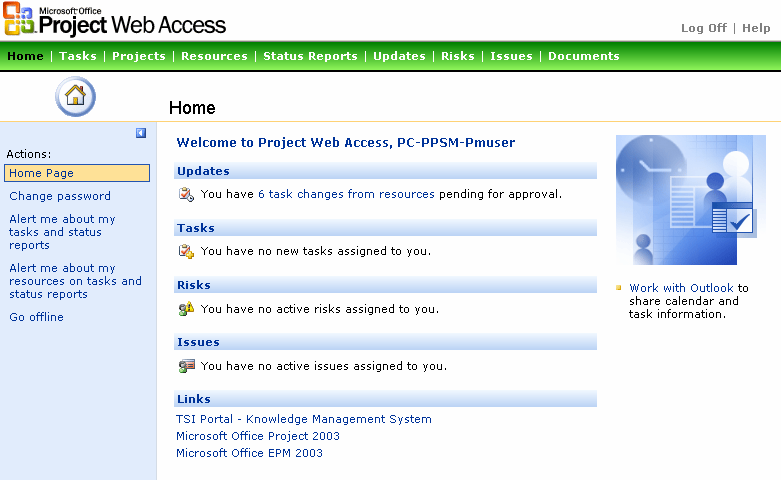
In the image above I've just made some colour changes to the Navigation bar just to show some of the things you can do with the CSS file.

Determining which Service Pack is installed on Project Server 2003

As you should know by now, the EPM solution stack includes ProjectServer 2003, Project Professional 2003, SQL Server 2000 and WSS v2.0. To determine the Service Pack applied to each of them:

Project Server 2003
Check the version of the pds.dll
11.2003.0816 (No Service Pack)
11.2004.0.1707 (Service Pack 1)
11.2005.0.3801 (Service Pack 2)
11.2005.0.4110 (Service Pack 2a)

WSS V2.0 Project Template
There has been no changes since Service Pack 1. The latest service pack just reapplied what was fixed in SP1. To determine SP1 browse to \Common Files\Microsoft Shared\web server extensions\60\TEMPLATE\LAYOUTS\1033\PWAINC.

The date modified of the PWAISSUE.JS should be March 25, 2004.

Project Server 2003 Database
MSP_WEB_ADMIN table and check the values of WADMIN_VERSION_MAJOR and WADMIN_VERSION_MINOR fields.
11,0 (No Service Pack)
11,1 (Service Pack 1)
11,2 (Service Pack 2)
11,2 (Service Pack 2a)

Unable to determine between SP2 and SP2a. If you're really not sure, reapply the SP2a for the database.

Project Professional 2003
Check the version properties of the WINPROJ.exe

11.0.2003.816 (No Service Pack)
11.1.2004.1707 (Service Pack 1)
11.2.2005.1801 (Service Pack 2)

Make sure both Project Server 2003 and Project Professional 2003 are on the latest and same service pack level.

Thanks to Gord Schmidt's post on Service Packs!

Wednesday, November 15, 2006

Project Server: Adding fields in the timesheet view

In Project Server 2003:

What you'll have to do is, before you publish your project to the server:

  1. Log on to PWA with Administrator rights.
  2. Go to Admin-Manage views. Select the Timesheet view and Modify. Add the field which you would like to include in your view.

Now the Project Manager can add the selected field he wish to make available in the timesheet.

  1. Open your .mpp file in Project Professional 2003.
  2. Go to Tools-Customize-Published Fields.
  3. Select the fields (the ones selected in PWA). Select the Assignment Radio Box. Check "Let resource change field" if you require the resource to input for a particular field (e.g. Cost, Actual Start).
  4. Click OK.

Once you've done that, republish your project if you have already done so. You need to republish to make sure the Project File on the server reflect the changes. You can then go and build your view and you'll start to see the information you want.

In Project Server 2007:

  1. Log on with Administrator rights.
  2. Click on Server Settings in the quick launch.
  3. Manage Views, click on the Timesheet view and just add the columns you want.
  4. Save!

Wednesday, July 26, 2006

EPM Best Practices

Excellent article. Worth the read!

http://www.clsassociates.com/EPMBestPracs.pdf